An SSL certificate is the digital lock that encrypts the exchange between your website and your visitors’ browsers. Without one, data travels in plain text, browsers show a “Not Secure” warning, and Google penalises your search rankings. A free certificate from Let’s Encrypt is enough for most business websites, but certain situations call for a paid certificate, and the price climbs with the level of verification you choose.
What is an SSL certificate?
An SSL certificate is a digital file installed on the server that hosts your website, and its role is to prove that your site is genuinely what it claims to be while encrypting the data exchanged between the server and the visitor’s browser.
SSL stands for Secure Sockets Layer, a protocol invented by Netscape in 1995 to secure the first commercial transactions on the internet. That protocol has since been replaced by TLS (Transport Layer Security), which fixes the security flaws in the older SSL versions, but the term “SSL certificate” has stuck in everyday language, including among hosting providers and certificate vendors. When people say SSL certificate today, they’re actually talking about TLS 1.2 or TLS 1.3, the two versions still accepted by modern browsers.
In practice, the certificate contains several pieces of information: the domain name it’s attached to, the name of the organisation that issued it (the certificate authority), a public encryption key, a start date and an expiration date, and a digital signature that guarantees the certificate hasn’t been tampered with. When a visitor opens your site, their browser automatically checks all of this within a few milliseconds, without the visitor having to do anything at all.
The visible sign that this process is working is the small padlock in the address bar and the “https://” prefix instead of “http://”. This padlock doesn’t vouch for the trustworthiness of the site itself (a fraudulent site can also have a certificate), but it guarantees that the connection between the browser and the server is encrypted, which prevents anyone from intercepting data in transit.
How does an SSL certificate work?
The SSL certificate relies on an asymmetric encryption system that uses two distinct keys: a public key, which is available to everyone, and a private key, which only the server knows.

When a visitor types your website address or clicks a link, their browser sends a connection request to the server. The server responds by sending its SSL certificate, which contains the public key. The browser then checks that the certificate is valid (not expired, issued by a recognised authority, and attached to the correct domain name), then uses the public key to encrypt a temporary session key that it sends back to the server. The server decrypts this session key with its private key, and from that point on, all data exchanged between the browser and the server is encrypted with the shared session key.
This mechanism, called the TLS handshake, takes place within a few dozen milliseconds, well before the page starts to render. The visitor sees nothing, does nothing, and yet their data is protected from the very first byte transferred. Passwords, credit card numbers, contact forms and even the plain content of pages all travel through an encrypted tunnel that only the browser and the server can read.
The session key is destroyed at the end of the connection, which means that even if someone managed to intercept the encrypted data, they couldn’t decrypt it after the fact. This is called Perfect Forward Secrecy, and it’s a property of TLS 1.3, the version currently recommended.
Why does your website need an SSL certificate?
Your website needs an SSL certificate because without one, browsers actively warn your visitors that the connection isn’t secure, which is enough to drive the majority of them away before they’ve read a single line of your content.
Google Chrome, which holds roughly 65% of the browser market in Europe, displays a “Not Secure” label in the address bar of any site that doesn’t have a valid SSL certificate. Firefox, Safari and Edge do the same. For a business website, a professional blog or an online store, this warning is an immediate deterrent that undermines trust before any interaction takes place, especially when a visitor is about to fill in a contact form or enter payment details.
The impact on search engine rankings is also real. Google confirmed in 2014 that the HTTPS protocol is a ranking signal, and since then, sites without an SSL certificate are systematically disadvantaged compared to equivalent competitors using HTTPS. It isn’t the most powerful ranking factor (content and links still come first), but it’s a binary one: either you have it or you don’t, and not having it automatically places you behind those who do.
The legal dimension matters too. The GDPR in Europe requires you to protect personal data collected through your website. If you have a contact form, a client area, a newsletter or any other feature that collects personal information, encrypting exchanges via SSL/TLS isn’t a technical luxury but a legal obligation, and non-compliance can lead to penalties. For more on the legal requirements for your website, see our article on mandatory legal notices.
What types of SSL certificates are there?
There are three main levels of SSL certificates, classified by how thoroughly the certificate authority verifies your identity before issuing the certificate.

The DV (Domain Validation) certificate is the entry level. The certificate authority only checks that you control the domain in question, usually through a simple email exchange or by creating a DNS record. This is the type of certificate provided for free by Let’s Encrypt, and it’s what the vast majority of websites worldwide use. The padlock in the browser looks identical to that of a more expensive certificate, and the encryption is just as strong.
The OV (Organisation Validation) certificate adds a layer of verification: the certificate authority checks not only that you control the domain, but also that your company legally exists, by consulting official registries (commercial register, Kbis in France, Companies House in the UK). Your company name appears in the certificate details, visible when a visitor clicks the padlock. This is a relevant choice for businesses that handle sensitive data and want their customers to be able to verify the identity of the organisation behind the site.
The EV (Extended Validation) certificate is the most rigorous level. The certificate authority conducts an in-depth audit that includes verifying the physical existence of the business, its legal status, its address and the identity of the applicant. This process takes several days and costs significantly more. Browsers no longer display the green address bar they once showed for EV certificates (that visual distinction was removed in 2019-2020), but the company name remains accessible in the certificate details.
There are also technical variants independent of the validation level: the wildcard certificate, which covers a domain and all its subdomains (for example *.yoursite.com covers shop.yoursite.com, blog.yoursite.com, etc.), and the SAN (Subject Alternative Name) or multi-domain certificate, which covers several different domain names under a single certificate.
| Type | Verification | Timeline | Indicative annual cost |
|---|---|---|---|
| DV (Domain Validation) | Domain control only | A few minutes | Free (Let’s Encrypt) or paid |
| OV (Organisation Validation) | Domain plus legal existence of the company | 1 to 3 days | Paid, more than a DV |
| EV (Extended Validation) | Full company audit | 3 to 10 days | The most expensive |
| Wildcard (DV or OV) | Depends on the level chosen | Depends on the level | Depends on the level |
For a business website, a professional blog or a small online store, a free DV certificate from Let’s Encrypt is more than enough. If your business involves collecting financial or medical data, or if you want to display company verification in the certificate, an OV certificate is worth the price difference. An EV certificate only makes sense for large companies, banks or platforms that process high volumes of sensitive transactions.
How much does an SSL certificate cost?
The price of an SSL certificate depends on the type of validation (DV, OV, EV) and the provider you choose, and it runs from completely free up to the EV certificate, the most expensive of the three.
Let’s Encrypt, a non-profit project backed by companies like Mozilla, Google, Cisco and the Electronic Frontier Foundation, provides free DV certificates that renew automatically every 90 days. Most modern web hosts (Infomaniak, o2switch, OVHcloud, Hostinger, etc.) integrate Let’s Encrypt directly into their control panel, which means you can activate an SSL certificate in a few clicks without spending a single cent beyond your hosting subscription. That’s why the answer to “do I need to pay for an SSL certificate?” is straightforward for most websites: no.
If you do opt for a paid certificate, the best known providers are DigiCert, Sectigo (formerly Comodo) and GlobalSign. The price climbs from a paid DV with technical support to an OV and then an EV, and it varies with the provider and the options (wildcard, several domains, financial warranty in case of compromise).
With most current hosting providers, the SSL certificate is included in the hosting plan as an automatic Let’s Encrypt certificate. This is the case with Infomaniak, o2switch, PlanetHoster and many others. If your host doesn’t offer this or charges extra for a basic “SSL certificate”, that’s a signal that it may be time to switch providers.
How to obtain and install an SSL certificate
The simplest way to get an SSL certificate is to activate it directly from your hosting provider’s control panel, where it’s often available in one click without any technical knowledge.

If your host supports Let’s Encrypt (which the vast majority do), the procedure amounts to a few steps. Log into your administration panel (cPanel, Plesk, or your host’s proprietary interface). Look for the “Security” or “SSL/TLS” section. Activate the certificate for your domain name. Renewal then happens automatically every 90 days without any action on your part.
If you’re running a custom-built website on a dedicated server or VPS, the installation requires a few command-line entries. Certbot, the official Let’s Encrypt client, automates both the acquisition and renewal of the certificate on Apache and Nginx servers. The command certbot --nginx -d yourdomain.com installs and configures everything automatically in under two minutes, and renewal is handled by a cron job (an automated scheduled command that runs at regular intervals) without you having to think about it.
For a paid certificate (OV or EV), the process is different. You first need to generate a Certificate Signing Request (CSR) on your server, then submit it to the certificate authority of your choice. The authority carries out its checks (consulting the commercial register, sometimes a phone call, address verification), then issues the certificate that you install on your server. Your hosting provider or web developer can handle this procedure if you’d rather not manage it yourself.
Once the certificate is installed, there’s one more step that many sites neglect: redirecting all HTTP addresses to HTTPS. If a visitor types “http://yoursite.com” instead of “https://yoursite.com”, they should be automatically redirected to the secure version. Without this redirect, your site is accessible in two versions (secure and insecure), which causes problems for both security and search rankings, because Google may index both versions and dilute your positions.
Common SSL certificate mistakes to avoid
The most common mistake is letting a certificate expire without realising it, which triggers a full-screen security warning in every visitor’s browser and blocks access to your site until the certificate is renewed.
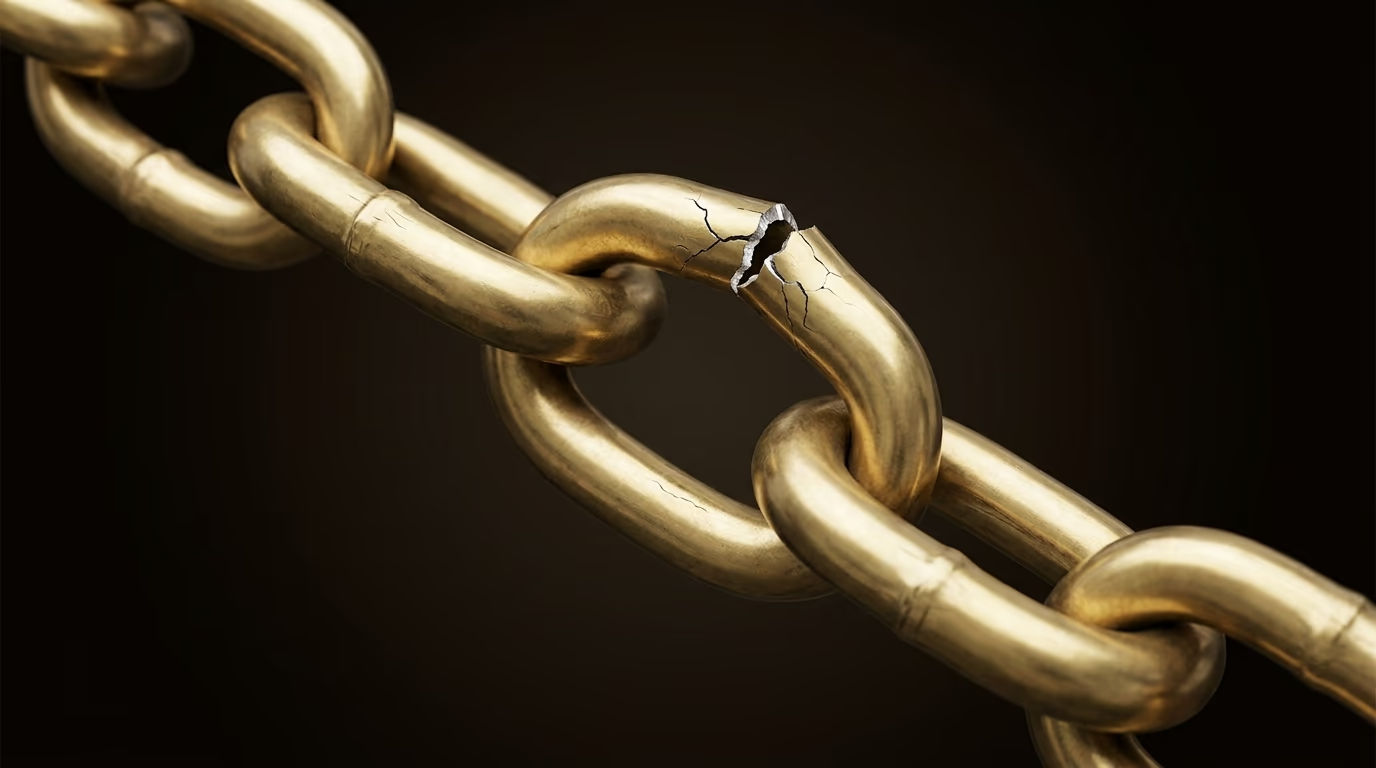
Let’s Encrypt certificates are valid for 90 days and renew automatically if the renewal mechanism is properly configured. But on a manually managed server, the automatic renewal task can stop working after a server update, a configuration change or a migration. The solution is to periodically check your certificate’s expiration date (a simple check to build into your maintenance routine) and to set up an email alert a few days before it expires.
Mixed content is the second classic mistake. Your site runs on HTTPS, but some resources on the page (images, scripts, fonts, videos) are still loaded over HTTP. The browser blocks these resources or shows a warning, and the padlock disappears or turns into a warning triangle. To fix this, you need to find every “http://” reference in your site’s code and replace it with “https://” or with protocol-relative URLs. A technical audit of your website will quickly spot these elements.
Redirect loops are another frequent error, especially on WordPress sites that use an HTTPS redirect plugin on top of the redirect already configured at the server level. The browser shows an “ERR_TOO_MANY_REDIRECTS” message and the page never loads. The cause is usually a double redirect: the server redirects HTTP to HTTPS, and the plugin does the same thing, creating an endless loop. The fix is to configure the redirect in one place only, preferably at the server level (in the .htaccess file for Apache or in the Nginx configuration).
There’s also the error of installing the certificate on the wrong domain. If your certificate is issued for “www.yoursite.com” but your site is also accessible at “yoursite.com” without the “www”, visitors who arrive on the version without “www” will see a security warning. The solution is either to use a certificate that covers both variants (most Let’s Encrypt certificates do this by default if you request them) or to consistently redirect one variant to the other.
How to check that your SSL certificate is working
The quickest check is to open your site in a browser and verify that the padlock is present in the address bar, with no warning triangle or “Not Secure” label.

By clicking the padlock, you can view the certificate details: the domain name covered, the certificate authority that issued it, the validity dates and the type of encryption used. This is the first check to run after installation, and the one to repeat every time you modify your server configuration or switch hosting providers.
For a deeper check, free online tools like SSL Labs (ssllabs.com/ssltest) analyse your server’s SSL/TLS configuration and give it a grade from A+ to F. This analysis detects obsolete protocol versions (SSL 3.0, TLS 1.0, TLS 1.1, which should no longer be active), weak cipher suites, certificate chain issues and other potential vulnerabilities. A properly configured site should score an A or A+ without particular difficulty.
If your site uses subdomains (blog.yoursite.com, app.yoursite.com, etc.), remember to check each of them individually, because a standard certificate only covers the main domain and the “www” subdomain. Additional subdomains need either dedicated certificates or a wildcard certificate that covers all of them.
For sites that handle sensitive data, it’s worth adding complementary HTTP security headers: HSTS (HTTP Strict Transport Security) forces browsers to use HTTPS exclusively even if the visitor types “http://”, and CSP headers (Content Security Policy) prevent mixed content from loading. These headers don’t replace the certificate, but they strengthen the overall security of your site.
Once your site is live and the padlock appears correctly, the final step is to make sure that your site structure and all internal pages use HTTPS links consistently, to prevent mixed content from creeping back in as you update your content over time.